
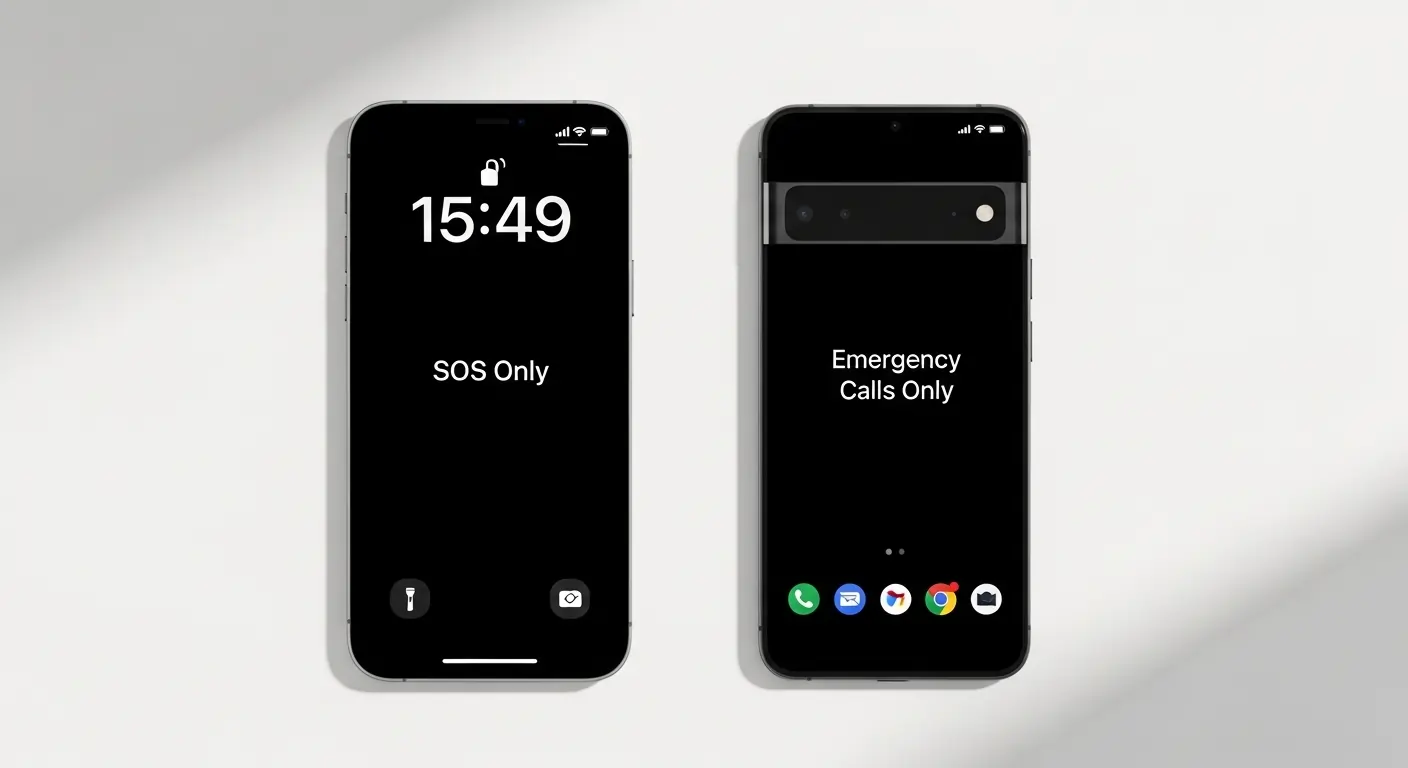
You picked up your phone and instead of signal bars, you saw “SOS” displayed. At first glance, this can feel scary, but the truth is that in most cases it’s a small and temporary issue.
In this article, we will explain exactly why does my phone say SOS, when and why it happens, and how you can fix it yourself at home without needing a technician.
What Does SOS Mode Mean?

When your phone shows “SOS” or “SOS Only” instead of signal bars, it simply means your phone is unable to connect to your carrier’s network.
This is not a major fault.
- Normal calls and mobile data will not work
- However, emergency calls will always work
That is the main purpose of SOS mode—you can still dial emergency numbers like 911 or your country’s emergency number in any situation.
Important: Seeing SOS does not mean your phone is broken. It is usually a temporary network issue and can often fix itself or be resolved with simple steps.
Some phones display “SOS” while others show “SOS Only,” but both mean the same thing.
Why Does My Phone Say SOS? 6 Main Reasons
There isn’t just one answer to why does my phone say SOS. Several different issues can cause this problem. Below are the most common reasons explained clearly.
1. Weak Signal or No Coverage
This is the most common cause. Inside buildings, basements, tunnels, or mountainous areas, signal may drop to zero, causing the phone to switch to SOS mode.
2. SIM Card Issue
If the SIM card is not inserted properly, is loose, damaged, or dirty, your phone cannot connect to the network and may show SOS.
3. Carrier Outage
Sometimes the issue is not on your side. Your carrier may be experiencing technical problems or maintenance, temporarily shutting down service in your area.
4. Unpaid Bill or Suspended Account
If your mobile bills are unpaid for a long time, the carrier may suspend your service. Your phone will then display SOS Only until payment is cleared.
5. Outdated Software
Not updating iOS or Android can lead to network bugs. Many people ignore updates, but outdated software can cause serious connectivity issues.
6. International Travel
If you are in another country and roaming is not enabled, your phone cannot connect to foreign networks and will show SOS.
SOS vs No Service vs Searching What’s the Difference?
These three status messages are often confused, but they have different meanings.
| Phone Status | Meaning | Emergency Call | Normal Call |
|---|---|---|---|
| SOS / SOS Only | Your carrier not found, but another network is available | Yes | No |
| No Service | No network available at all | No | No |
| Searching | Phone is still trying to find a network | Maybe | No |
So, SOS is actually better than “No Service” because emergency calls can still be made.
SOS on iPhone vs Android What’s the Difference?
On iPhone
On iPhone, the status bar shows “SOS” or “SOS Only.” Apple has built this feature directly into iOS.
On iPhone 14 and later models, SOS can also work via satellite when no cellular network is available.
Android Devices
Most Android phones display this as “Emergency Calls Only” or sometimes “No Service.”
Brands like Samsung, Google Pixel, OnePlus, and Xiaomi display it differently, but the meaning is the same—no carrier connection, but emergency calls are possible.
Special Note (iPhone 14+): Emergency SOS via Satellite allows emergency communication even without cellular or WiFi in supported countries.
Why Does My Phone Say SOS? 7 Step-by-Step Fixes
Now let’s get to the real solution. These seven fixes can be tried at home without any technician.
1. Change Location
Move to an open area. Go near a window or outside. Signal often returns immediately.
2. Toggle Airplane Mode
Turn Airplane Mode ON for 15–20 seconds, then turn it OFF. This forces your phone to reconnect to a network.
3. Restart Your Phone
Turn off your phone, wait 30 seconds, then turn it back on. This refreshes all network systems.
4. Reinsert SIM Card
Turn off the phone, remove the SIM, check for damage or dust, clean it gently, and reinsert it properly.
5. Reset Network Settings
- iPhone: Settings → General → Transfer or Reset → Reset Network Settings
- Android: Settings → System → Reset Options → Reset WiFi, Mobile & Bluetooth
(Note: This will delete saved WiFi passwords.)
6. Update Software
Update your phone’s system software. Also check for carrier updates.
7. Contact Carrier Support
If nothing works, the issue is likely from the carrier side. Check your account status or contact support.
How to Prevent SOS Mode in the Future
To avoid SOS mode in the future:
- Keep your phone updated
- Check your SIM card regularly
- Pay your bills on time
- Use a carrier with strong coverage in your area
- Use eSIM during international travel
- Protect your phone from drops (to avoid antenna damage)
Frequently Asked Questions
Why does my phone say SOS and calls are not working?
Because your phone is not connected to your carrier. Only emergency calls work. Try Airplane Mode or restart first.
Can I make calls using WiFi in SOS mode?
Yes, if WiFi Calling is enabled, you can make normal calls over WiFi.
How do I make an emergency call in SOS mode?
Simply dial the emergency number. It will connect automatically.
How long can SOS mode last?
It depends on the cause. It may last until signal returns, service is restored, or the issue is fixed.
Does SOS mode delete my data?
No. Your data, photos, and apps remain safe. Only WiFi passwords are removed if you reset network settings.
Why does my phone say SOS at home?
Usually due to carrier outage or account issues. Check with your carrier.
Does it fix itself automatically?
Sometimes yes especially if caused by signal or outage issues. Otherwise, you need to fix it manually.
Conclusion
If your phone shows SOS, the situation is not as serious as it looks.
The answer to why does my phone say SOS is usually simple:
- Weak signal
- SIM issue
- Carrier outage
- Outdated software
Start with simple fixes like changing location or toggling Airplane Mode. If needed, restart your phone, check your SIM, reset network settings, or update software.
In most cases, one of these steps solves the issue.

1 Comment
Pingback: Fileprovider Cache Blank HTML: Causes, Solutions, and Recommendation - Tech Apex Lab